App Store · Official Guide

Shadowrocket User Guide

A rule-based proxy client for iPhone and iPad. Learn about rule-based routing, importing existing configurations, and a one-time purchase.

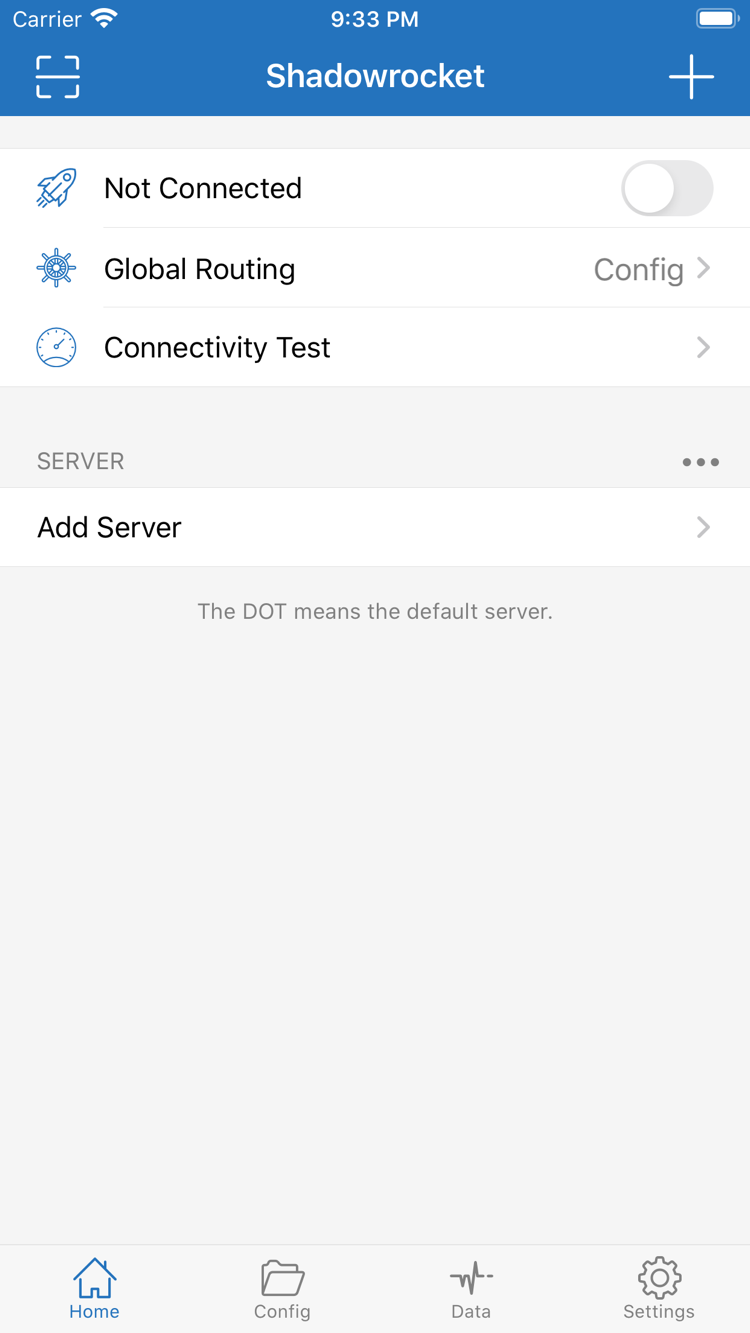
Official Shadowrocket Home screenshot showing the connection switch and server group

Purchase and first launch

Getting Shadowrocket on iPhone and iPad

Shadowrocket is available to purchase and install only through the App Store. First check the store account on your device, then verify the product page, compatibility, and payment details. If you’ve purchased it before, check your purchases first rather than paying again. See the App Store page for system requirements and eligibility for use across devices.

iPhone

Before purchasing, check the app icon, developer, and app ID. After installation, import your own server details before connecting. On your first connection, read the system prompt to add a VPN configuration and confirm as required by your device.

System permission allows the client to establish a connection; it does not confirm that the server is working. Return to Home to check the selected item and Global Routing, then verify by visiting a website.

View iPhone setup details

iPad

In the App Store, use the original purchasing account to find Shadowrocket and check whether it can be redownloaded. Purchase eligibility across iPhone and iPad is determined by the App Store listing. Check existing configurations on each device separately.

On wider screens, lists and editing areas may be arranged differently. Use interface labels such as Home, Config, and Settings to find the relevant controls. Restoring a purchase and syncing configurations are separate processes.

View iPad setup details

Before configuring the app for the first time, have your own subscription or server details ready. Make sure the address, port, authentication details, and protocol parameters come from the same set of instructions; don’t mix fields from different configurations. This site does not provide, sell, or recommend servers or subscriptions.

Shadowrocket is also available on Mac and Apple TV through the same App Store. See the App Store page for compatibility and system requirements.

View the setup steps →
On the App StoreDownload Shadowrocket

Rules, connections, and configuration management

First, distinguish which server a connection uses, which mode handles traffic, and which rule matches a specific request. Each serves a different purpose, so the connection toggle alone can’t confirm that everything is set up correctly. The capabilities below are grouped by task; see the feature guide for details and requirements.

Route requests by rules

Set Global Routing to Config on Home to route requests according to the active configuration. Rules are generally checked in order: when a domain, address, or region condition matches, the corresponding policy is applied; unmatched requests fall through to FINAL. Save a copy of the original configuration before editing. Confirm that PROXY points to a working policy, then change one rule at a time and test the same destination. DIRECT means a direct connection; REJECT means the request is blocked. Check rule matching and server availability separately.

Global RoutingConfigFINAL

Choosing between the three Global Routing modes

Config routes traffic according to the active configuration file and is suitable for everyday use when your rules are ready. Proxy routes requests handled by the client through the current proxy path, which can help determine whether a problem is caused by routing settings. Direct uses a direct connection path for comparison. Changing modes won’t fix incorrect server parameters or restore an unavailable service. Remember to switch back to the mode you need after testing.

For example, if the same website works in Proxy but fails in Config, check the relevant rules and policy references next. If both modes fail, first check server status, authentication details, and your current network. If only certain domains have issues, don’t reset all settings right away. Retry the same destination on the same network, note which mode fails, then check how DNS and rules interact. This comparison makes it easier to isolate the cause than changing several options in a row.

Break a connection test into verifiable steps

On Home, first confirm that a working server is selected, then check Global Routing. If you’re using Config, make sure the active file is the one you expect. Turn on the connection and complete any system authorization prompts. Finally, visit a website you regularly use and check page resolution, content loading, and requests from within the app. The connection toggle is only one step; verify actual access as well.

If you use an existing subscription, distinguish between two things that can be updated: a server subscription manages connection entries, while a remote configuration manages rules and settings. Updating one does not update the other. Save a restorable copy of the configuration before making manual changes. After an update, check which entries were added or removed, then test a destination you previously used. Follow your provider’s instructions for each field; don’t guess the protocol from a name or label.

App verification and purchase details

Shadowrocket is a closed-source commercial app. Verify the app by checking its developer, official icon, and app ID in the App Store. Refer to the App Store page for price, compatibility, system requirements, and purchase eligibility.

  • Developer: Shadow Launch Technology Limited
  • App ID: 932747118
  • One-time purchase
  • Available exclusively on the App Store

Check three details before purchasing

Open the product page and check that the app is named Shadowrocket and the developer is Shadow Launch Technology Limited; compare the icon with the official icon shown on this site. Then check the app ID in the product link and confirm it is 932747118. Search results may show similar names or icons, so don’t rely on a nickname alone. Once all three details match, review device compatibility and pricing on the store page before confirming your purchase.

Even when you open the App Store from this site, verify the product details. What appears in the store may vary with the account’s storefront. Use the final product page as your reference, not a search snippet, an old screenshot, or someone else’s description. Interface labels in this guide help you find features, but the app’s layout and available options may vary by device and change over time.

App purchase ≠ service plan

A one-time purchase gives you the right to use the client; it does not include servers, subscriptions, or data services. The client reads existing configurations, connects, and handles requests according to rules. Check with your own service provider to confirm that a remote service is active, an account hasn’t expired, and data is available. If Home has no usable connection entries after payment, that doesn’t mean the purchase failed; you still need to import your own details.

The reference price in the US storefront is $2.99. Other storefronts display local currencies; the actual amount is shown on the App Store payment screen. App pricing and service fees are separate, and paying for the app does not confirm that a server-side account is active. This is the Shadowrocket website and official guide, covering purchase verification, configuration, use, and troubleshooting. It does not provide servers or subscriptions.

Purchases and restores with the same account

When switching devices or reinstalling, first make sure the App Store account in use is the same one used for the original purchase, then find Shadowrocket in your purchases. The status of other accounts on the device doesn’t necessarily tell you which account the App Store is using. If the product page still shows a price, check the account, purchase history, and current storefront before paying again. The exact name of the restore option depends on the current interface on your device.

Check the App Store page to see whether the original purchase can be used across iPhone and iPad and which other devices are eligible. After restoring the app, check whether your configuration details are still there. Subscriptions, manually added servers, the active Config, and system connection permissions are separate parts of the setup. Restore the purchase first, check your configuration, then test access so missing settings aren’t mistaken for a failed app restore.

Store availability, system requirements, and updates

If you can’t find the app, check the region of your App Store account, age-rating restrictions on your device, and account status in turn. Then use the app ID listed on this site to verify the product. If the product page opens but you can’t purchase, read the reason shown by the store. App availability in a storefront and device eligibility are determined by the current App Store listing; this guide doesn’t infer purchase eligibility from search results.

See the App Store page for system requirements. App updates are delivered through the App Store. Check automatic update settings on your device or look for available updates in the store. Save important configurations before updating, then verify your existing connection before changing any newly available options. This guide doesn’t list version numbers or release dates. For current features, refer to the app’s interface and the App Store release notes.
Frequently asked questions

After importing a subscription, do I also need to select Config?

Check them separately. A subscription usually provides server entries, while Config controls rules and related settings in Config mode. After importing, check the selected server, active configuration file, and Global Routing. Don’t assume everything is set up just because entries appear in the list. See definitions of subscription and configuration terms →

Why test a website if the connection is on?

Connection status, server response, and successful requests are separate checks. Use Connectivity Test as a guide, then visit a consistent test destination. If it fails, check the server, mode, DNS, and rules in that order. See troubleshooting guidance →

Does a latency test show actual speed?

Not directly. The test method and destination affect response results, while webpage loading also depends on bandwidth, the destination site, and the connection path. Compare real-world access under the same network and test conditions. See answers about testing →

What should I restore first after switching devices?

First restore the app with the original purchasing account. Then check that your subscriptions, servers, and Config are intact, and verify connection permissions and access. Restoring a purchase doesn’t confirm that your configurations were restored. See the purchase restore steps →

Guides and topic articles

Choose an article based on the issue you’re dealing with. For purchases and restores, start by checking the store account. For protocol fields, compare them with your own server details. Each article focuses on one issue and provides a clear set of checks, so you don’t have to change every setting at once.